

Setup time: ~2 minutes
Prerequisites
- VS Code installed
- Blackbox AI extension installed
- Infercom API key
Configuration
Step 1: Open Blackbox Settings
- Open VS Code
- Click the Blackbox AI icon in the sidebar
- Click the Settings (gear icon) in the top-right of the Blackbox panel
Step 2: Configure API Provider
In the Settings dialog, enter:Step 3: Configure Model Settings
Expand MODEL CONFIGURATION and set:Step 4: Save
Click Save to apply the configuration.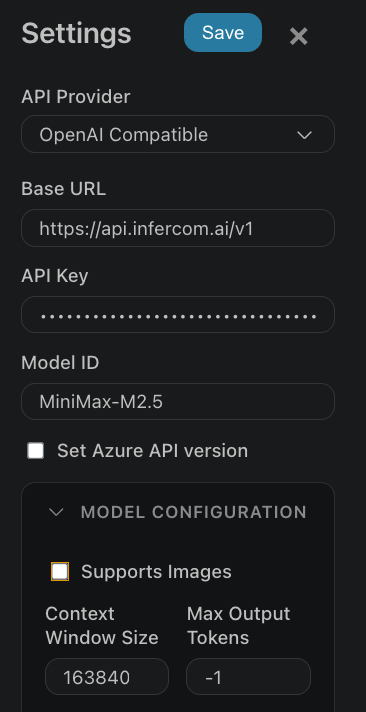
Model
UseMiniMax-M2.7 - optimized for agentic coding with 192K context window.
Verification
After setup, test with a simple prompt:Troubleshooting
”Invalid API Key” error
- Verify your API key at cloud.infercom.ai
- Ensure no extra spaces in the API key field
”Model not found” error
- Check model ID is exactly
MiniMax-M2.7(case-sensitive) - Verify available models:
curl https://api.infercom.ai/v1/models
Slow responses
- Check your internet connection
- Infercom API is hosted in EU (Munich) - latency may vary by location
- First request may be slower due to model loading
Next Steps
- Cline - Autonomous VS Code agent
- Cursor - Full AI-native IDE
- Choosing a Tool - Compare all options