> ## Documentation Index
> Fetch the complete documentation index at: https://docs.infercom.ai/llms.txt
> Use this file to discover all available pages before exploring further.
# Kilo Code Integration Guide
> Configure Kilo Code VS Code extension with Infercom's EU sovereign inference. Open source AI coding agent with GDPR compliance.
[Kilo Code](https://kilo.ai) is an open source AI coding agent for VS Code. It generates code from natural language, automates tasks, runs terminal commands, and supports inline autocomplete.
**Setup time:** \~2 minutes
## Prerequisites
* [VS Code](https://code.visualstudio.com/) installed
* [Kilo Code extension](https://marketplace.visualstudio.com/items?itemName=kilocode.kilo-code) installed
* [Infercom API key](https://cloud.infercom.ai/apis)
## Configuration
### Step 1: Open Kilo Code Settings
1. Open VS Code
2. Click the Kilo Code icon in the sidebar
3. Open the settings panel
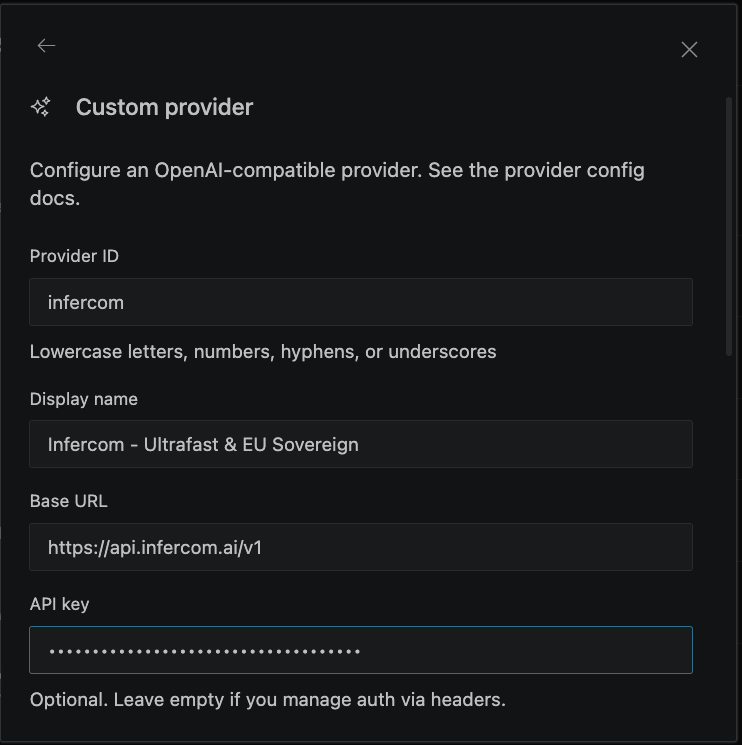
### Step 2: Select Provider
1. In the **API Provider** dropdown, select **OpenAI Compatible**
2. Enter the base URL: `https://api.infercom.ai/v1`
3. Enter your **Infercom API key**
4. Enter the model name: `MiniMax-M2.7`
 ### Step 3: Model Configuration
In the **Model Configuration** section, set:
| Setting | Value |
| --------------------- | -------- |
| **Context Window** | `192000` |
| **Max Output Tokens** | `16384` |
| **Image Support** | Disabled |
### Step 3: Model Configuration
In the **Model Configuration** section, set:
| Setting | Value |
| --------------------- | -------- |
| **Context Window** | `192000` |
| **Max Output Tokens** | `16384` |
| **Image Support** | Disabled |
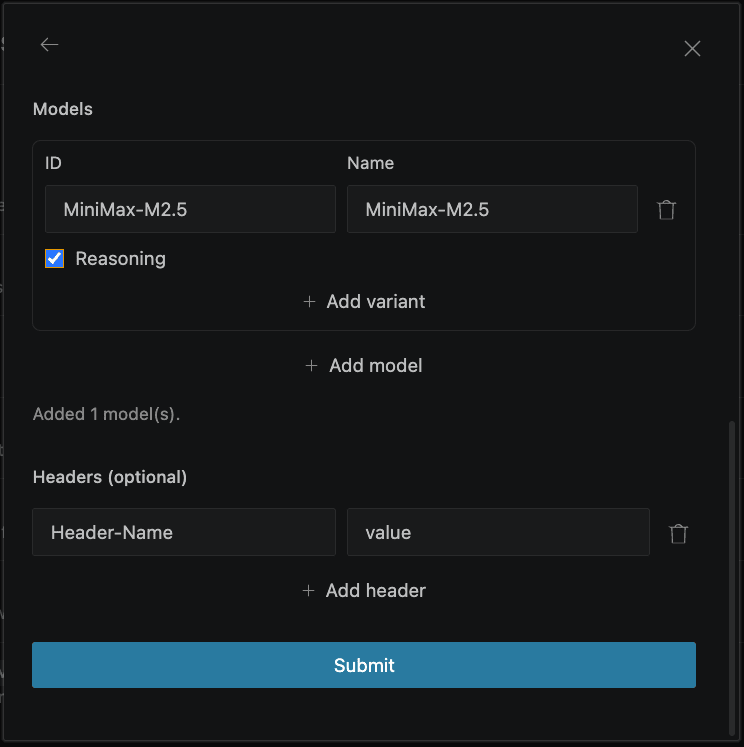 **Image Support** must be disabled - MiniMax-M2.7 doesn't support image input.
### Step 4: Verify Connection
Start a conversation to verify the setup works.
## Model
Use `MiniMax-M2.7` - optimized for agentic coding with 192K context window.
## Usage
With Kilo Code configured:
1. Click the Kilo Code icon in VS Code sidebar
2. Select a mode: **Architect**, **Coder**, or **Debugger**
3. Type your request in the chat
4. Kilo Code will autonomously:
* Read relevant files
* Write or edit code
* Run terminal commands
* Iterate until the task is complete
### Modes
| Mode | Best For |
| ------------- | -------------------------- |
| **Architect** | Planning, design decisions |
| **Coder** | Writing and editing code |
| **Debugger** | Finding and fixing bugs |
### Example Tasks
* "Add error handling to the login function"
* "Write unit tests for the User class"
* "Refactor this file to use async/await"
## Troubleshooting
### Connection Failed
Verify your configuration:
* Base URL: `https://api.infercom.ai/v1`
* API key is valid
* Model name is exact: `MiniMax-M2.7`
### Invalid API Key Error
Double-check your Infercom API key is entered correctly. Test it:
```bash theme={null}
curl -s https://api.infercom.ai/v1/models \
-H "Authorization: Bearer your-infercom-api-key"
```
### Model Not Found
Ensure the model name matches exactly (case-sensitive): `MiniMax-M2.7`
### Slow Responses
MiniMax-M2.7 runs at 400+ tokens/sec. If responses seem slow:
1. Check your network connection
2. Large context (many files) increases processing time
3. First request may be slower due to model loading
## Next Steps
* [Cline](/en/agentic-coding/cline) - Similar VS Code agent
* [Continue](/en/agentic-coding/continue) - Open-source alternative
* [Choosing a Tool](/en/agentic-coding/choosing-a-tool) - Compare all options
**Image Support** must be disabled - MiniMax-M2.7 doesn't support image input.
### Step 4: Verify Connection
Start a conversation to verify the setup works.
## Model
Use `MiniMax-M2.7` - optimized for agentic coding with 192K context window.
## Usage
With Kilo Code configured:
1. Click the Kilo Code icon in VS Code sidebar
2. Select a mode: **Architect**, **Coder**, or **Debugger**
3. Type your request in the chat
4. Kilo Code will autonomously:
* Read relevant files
* Write or edit code
* Run terminal commands
* Iterate until the task is complete
### Modes
| Mode | Best For |
| ------------- | -------------------------- |
| **Architect** | Planning, design decisions |
| **Coder** | Writing and editing code |
| **Debugger** | Finding and fixing bugs |
### Example Tasks
* "Add error handling to the login function"
* "Write unit tests for the User class"
* "Refactor this file to use async/await"
## Troubleshooting
### Connection Failed
Verify your configuration:
* Base URL: `https://api.infercom.ai/v1`
* API key is valid
* Model name is exact: `MiniMax-M2.7`
### Invalid API Key Error
Double-check your Infercom API key is entered correctly. Test it:
```bash theme={null}
curl -s https://api.infercom.ai/v1/models \
-H "Authorization: Bearer your-infercom-api-key"
```
### Model Not Found
Ensure the model name matches exactly (case-sensitive): `MiniMax-M2.7`
### Slow Responses
MiniMax-M2.7 runs at 400+ tokens/sec. If responses seem slow:
1. Check your network connection
2. Large context (many files) increases processing time
3. First request may be slower due to model loading
## Next Steps
* [Cline](/en/agentic-coding/cline) - Similar VS Code agent
* [Continue](/en/agentic-coding/continue) - Open-source alternative
* [Choosing a Tool](/en/agentic-coding/choosing-a-tool) - Compare all options